Got a text saying your Apple ID is locked or charged? Learn how to spot the scam, check your Apple Account safely and report the message to Apple and 7726.
Quick answer: A text saying your Apple ID has been locked, suspended or used for a purchase, and asking you to tap a link or call a number to fix it, is a scam. Apple says it will never ask you to sign in to a website through a message or call, or to give your password, device passcode or two-factor authentication code (Apple Support). Don't tap the link. Check your account in Settings on your iPhone or at account.apple.com, which you type yourself. Then report the text: tap Report Junk in Messages, or take a screenshot that shows the sender and email it to reportphishing@apple.com, and forward SMS scams to 7726.
Apple now uses the name Apple Account for what used to be called the Apple ID, but scam texts still use both names. This guide shows the common versions, how to check your account safely, where to report the text and what to do if you already entered your password. For phishing texts in general, see our guide to phishing links and texts.
What Apple ID scam texts look like
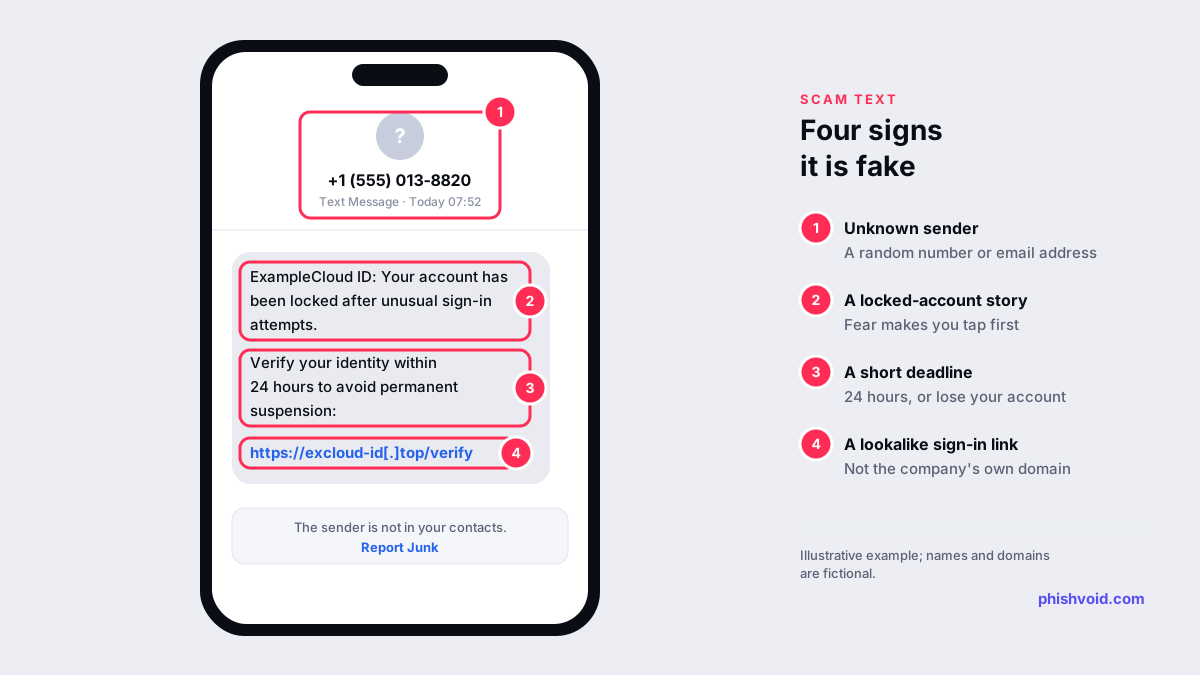
The wording changes constantly, but the story is almost always one of these:
- "Your Apple ID has been locked" or disabled for security reasons, with a deadline to verify your identity through a link.
- "Apple Pay has been suspended" or a card has been removed, and you need to re-add your card details.
- "Your iCloud payment failed" or your storage is full, so photos will be deleted unless you update your billing information.
- A purchase you didn't make, such as an expensive app subscription or device, with a number to call to cancel it.
- "Your lost iPhone has been found." If you have recently lost a device, be very wary of a text asking you to sign in to see where it is.
The messages often arrive from an unfamiliar phone number or from an email address through iMessage, and the link goes to a page that copies Apple's sign-in screen. Everything you type there, including your password and any verification code, goes to the scammer. This is smishing: phishing by text message.
Why these texts are convincing
Apple really does send text messages. When you sign in on a new device or browser, two-factor authentication can send a verification code to your trusted phone number. Scammers rely on that familiarity.
The difference is the direction of travel. A genuine code arrives because you just started a sign-in yourself, and it is meant to be typed only into your own device or Apple's own sign-in page. Apple's guidance is blunt: never share your Apple Account password or verification codes with anyone. A text that asks you to sign in through a link, or a caller who asks you to read out a code, is not Apple.
Some scams combine both. A fake sign-in page triggers a real code to your phone, then asks you to type it in, or a caller posing as Apple Support asks for it "to secure your account". If anyone asks for a code you received, stop.
How to check your Apple Account safely
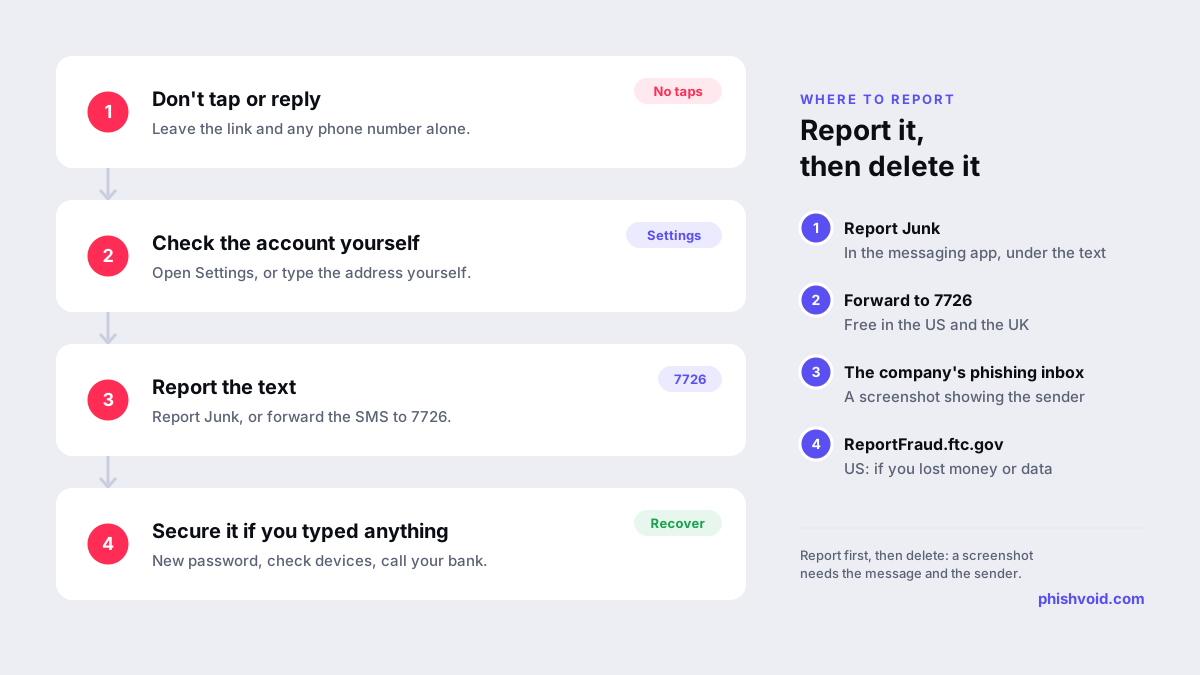
- Ignore the link and any number in the text. Don't reply either; a reply tells the sender your number is active.
- Look on your device. On an iPhone, open Settings and tap your name to see your account, payment details and signed-in devices.
- Or go to the website yourself. Type account.apple.com into your browser and sign in. Check that your personal and security information is correct.
- Check your devices. In the Devices section, remove anything you don't recognise (Apple Support).
- Check purchases if the text mentions one. Apple says you can see your purchase history at reportaproblem.apple.com after signing in with your Apple Account (Apple Support).
If your account and purchase history look normal, the text was a scam. If you want to look at the link without opening it, copy it and paste it into our link checker.
How to report an Apple ID scam text
- In Messages: tap Report Junk under the message. You can also block the sender.
- To Apple: take a screenshot of the message, including the phone number or email address that sent it, and email the screenshot to reportphishing@apple.com, as Apple's guide to recognising phishing asks.
- To your mobile provider: forward SMS scams to 7726 (SPAM) in the US, which helps carriers spot and block similar messages (FTC). The UK uses the same number (GOV.UK).
- To the authorities: in the US, report it at ReportFraud.ftc.gov, especially if you lost money or shared details. Our guide on how to report a scam lists the services in other countries.
Then delete the message. The fake sign-in pages behind these texts are also reported to hosting providers and browser blocklists, which is the kind of takedown work Phishvoid does for the brands being imitated.
If you tapped the link or entered your password
- Change your Apple Account password straight away on your iPhone in Settings, or by typing account.apple.com. Use a strong password you don't use anywhere else.
- Review your account information at account.apple.com and correct anything unfamiliar, including email addresses and trusted phone numbers.
- Remove devices you don't recognise from the Devices list.
- Check your email and phone number. Apple advises confirming with your email provider and mobile carrier that you still control every address and number linked to your account, and that SMS forwarding hasn't been turned on.
- If you can't sign in, start account recovery at iforgot.apple.com, which Apple names for this situation.
- If you entered card details, call your bank on the number on your card and ask them to block the card.
- Expect a follow-up call. If someone claiming to be Apple or your bank calls about the incident, hang up and contact them yourself through their official website or app.
Our I got phished page has a fuller checklist for recovering accounts after a phishing attack.
FAQ
Does Apple send text messages about my Apple ID?
Apple can text verification codes to your trusted phone number when you sign in. It says it will never ask you to sign in to a website through a message, or to share your password or codes with anyone.
Is Apple ID the same as Apple Account?
Yes. Apple now calls it an Apple Account; the sign-in and the account are the same. Scam texts use either name.
What is reportphishing@apple.com?
It is the address Apple gives for reporting phishing messages that look like they come from Apple. For a text, email a screenshot that shows the message and the sender's number or address.
I got the text as an iMessage from an email address. Is that a sign of a scam?
It is a common feature of these scams, because anyone can send an iMessage from an email address. Tap Report Junk under the message and delete it.
Should I reply STOP?
No. Replying confirms your number is active. Report the message, block the sender and delete it.
Is someone impersonating your brand?
We find lookalike domains and cloned pages and take them down. Start with a free exposure scan.