Got a Microsoft account unusual sign-in email? See how the real alert differs from the scam, how to check it without clicking, and how to report a fake.
Quick answer: Microsoft does send real "unusual sign-in activity" emails, so the subject line alone doesn't prove a scam. Microsoft says genuine ones come from account-security-noreply@accountprotection.microsoft.com (Microsoft Support). Scammers copy the layout and the wording, though, so the safe test is to ignore the email's buttons, type account.microsoft.com into your browser, sign in and look at your recent activity. If the sign-in described in the email is listed there, the alert is real. If it isn't, or the email asks you to reply, call or "report the user", treat it as a scam.
Below: how the scam copy differs from the real alert, the "report the user" trick, a step-by-step way to check, how to report the fake and what to do if you already replied or signed in. For a checklist that works on any email, see Is this a legit email?
Real alert or scam? The differences
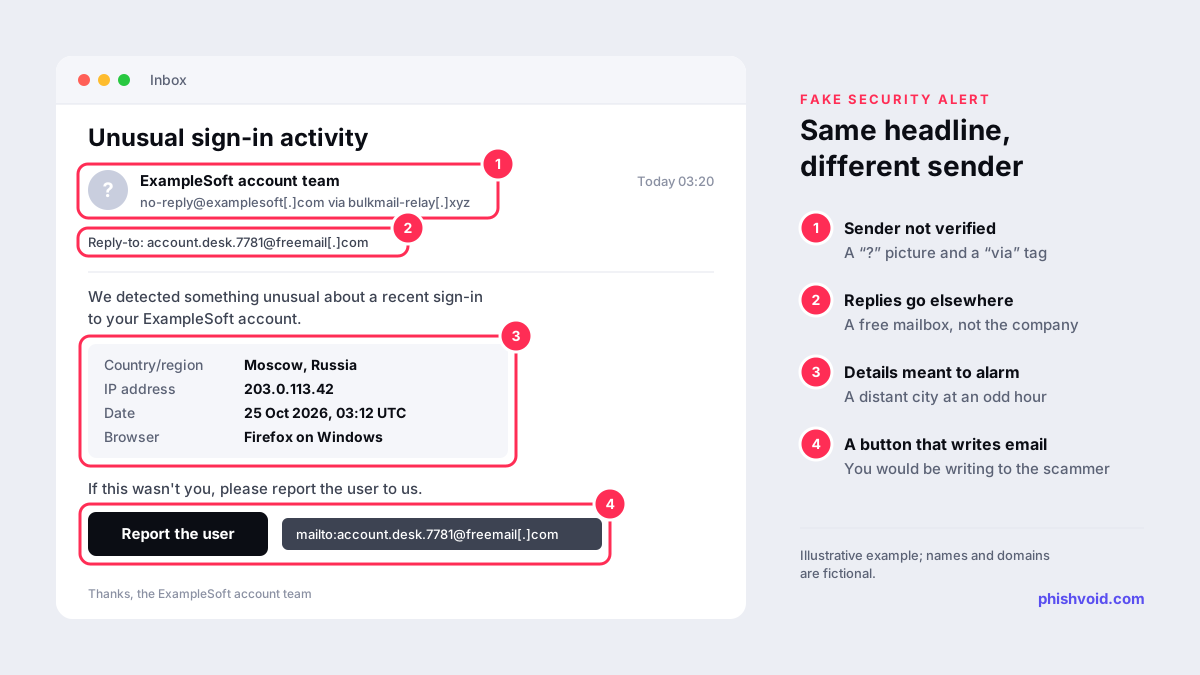
The scam copy imitates the real alert closely, often down to the headline and details such as a country, an IP address and a browser. The differences are in where the email came from and what it wants you to do.
| Check | Real Microsoft alert | Scam copy |
|---|---|---|
| Sender | account-security-noreply@accountprotection.microsoft.com | A lookalike address, a free mail account, or a spoofed From line with a different reply-to address |
| What it asks | Review the activity in your Microsoft account | Reply, call a number, "report the user" by email, or sign in through its link |
| Links | Lead to Microsoft account pages | Lead to a lookalike domain, a shortened link or a pre-filled email |
| Your account activity | Shows the same sign-in | Shows nothing matching |
| Outlook indicators | Verified sender | Often a "?" in the sender picture or a "via" tag; sometimes delivered to Junk |
The sender address is a strong clue but not the final word, because a From address can be forged when the receiving server doesn't enforce authentication. Outlook.com helps: it shows a question mark in the sender's picture when it can't verify the sender, and an underlined "via" tag when the actual sender differs from the From address (Microsoft Support). Our guide to SPF, DKIM and DMARC explains the checks behind those labels, and how to spot a phishing email shows how to read the headers yourself.
The "report the user" trick
One long-running version of this scam contains no phishing link at all. In May 2022 Switzerland's National Cyber Security Centre described a fake "Microsoft account unusual sign-in activity" email that claimed a sign-in from Russia and offered a "Report The User" link. The link didn't open a website: it opened a reply email addressed to Google mail accounts the attackers had set up (NCSC weekly report). Anyone who wrote back could then be asked for their login details. The centre found that the email failed its SPF check, so Outlook had moved it to spam, and that the IP address shown in the alert had nothing to do with Russia.
Microsoft's own guidance for a sign-in you don't recognise is to open your account, find the activity and select "This wasn't me" there. It doesn't involve emailing anyone. If a button in a "security alert" opens a new message in your mail app, you would be writing to the scammer.
How to check the alert safely, step by step
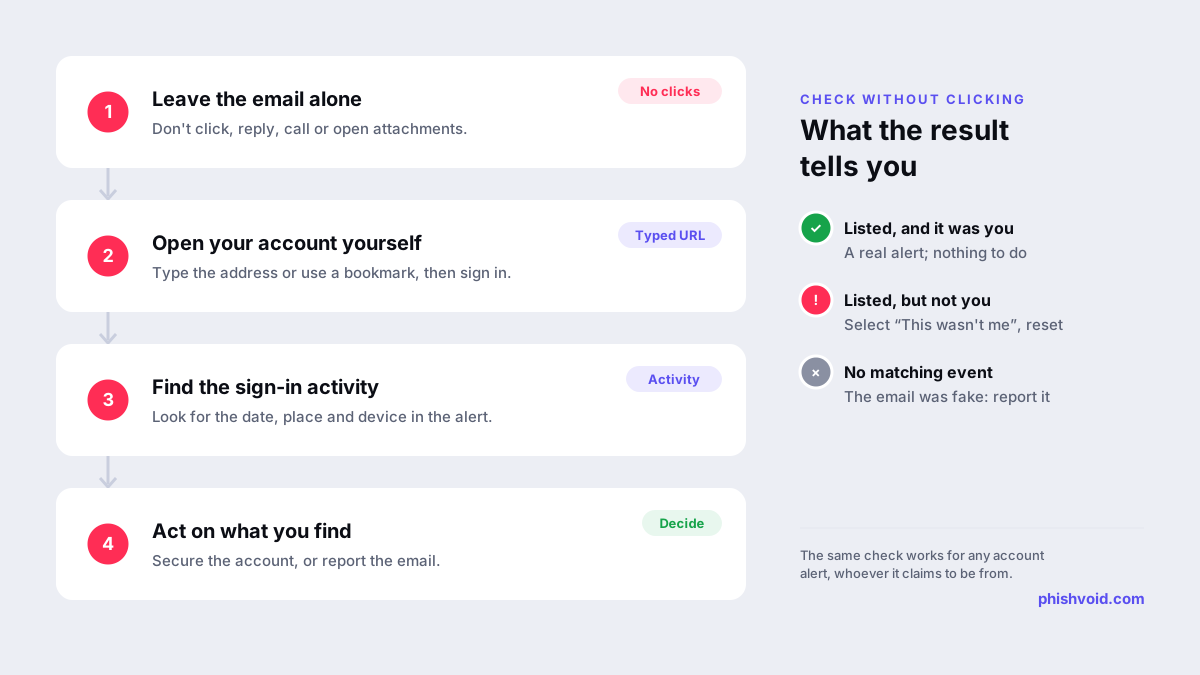
- Leave the email alone. Don't click, reply or call, even on a button that says "Review recent activity".
- Open your account yourself. Type account.microsoft.com into a new browser tab, or use a bookmark, and sign in.
- Find your sign-in activity. On the Security page, choose the option to review activity. Look for the date, location and device the email described.
- Decide. If the sign-in is listed and it was you, for example a new phone, a trip or a VPN, there's nothing to do. If it's listed and it wasn't you, expand it and select "This wasn't me" (under Unusual activity) or "Secure your account" (under Recent activity), then change your password.
- No match means a fake. If nothing in your account matches the email, report it and delete it.
Microsoft's page on unusual sign-ins explains that it may block a sign-in when you use a new device, install a new app, or travel or sign in from a new location, and that you might get an email or text about it. It may also ask for a security code sent to one of your alternate contact methods. If a security code arrives that you didn't request, don't share it with anyone: it can mean someone is trying to sign in with your email address, so check your activity as above.
The same page notes that Microsoft support agents are not allowed to send password reset links or to access and change account details. An email or phone call offering to "fix" your account that way is not Microsoft.
How to report the scam email
- Outlook.com: select the message, then above the reading pane choose Report > Report phishing. Reporting doesn't block the sender; add the address to your blocked senders if you want to.
- Other Outlook versions: our guide on how to report phishing in Outlook covers classic Outlook, new Outlook and the mobile apps.
- Gmail and other providers: use the Report phishing option in the message menu, then delete the email.
- Work or school account: report it to your IT or security team, using their reporting button if they have one. Administrators can submit samples to Microsoft through the submissions page in Microsoft Defender (Microsoft Learn).
- Fake sign-in page: in Microsoft Edge, while on the page, select More (...) > Help and feedback > Report unsafe site. Our guide on reporting a scam website lists the other blocklists.
- In the UK: forward the email to
report@phishing.gov.ukfor the National Cyber Security Centre (GOV.UK).
If you replied, clicked or signed in
- Change your Microsoft account password at account.microsoft.com, typed yourself. If you use the same password anywhere else, change it there too.
- Check your security info, the alternate email addresses and phone numbers on your account, and remove any you didn't add.
- Turn on two-step verification if it's off, so a stolen password alone isn't enough.
- Review your activity again and select "This wasn't me" on any sign-in you don't recognise.
- Check your mailbox for forwarding settings and inbox rules you didn't create, and for sent messages you didn't write.
- If you can't sign in, use the account recovery option on Microsoft's sign-in page rather than any recovery link sent to you.
If you only replied and gave no details, stop replying and expect more scam messages to that address. Our I got phished page has a fuller checklist. If your own organisation's name is being used in fake sign-in alerts and lookalike login pages, Phishvoid can find those pages and get them taken down.
FAQ
Is account-security-noreply@accountprotection.microsoft.com legit?
Yes. Microsoft names it as the sender of genuine account security emails. A sender name can still be imitated, so confirm any alert by checking your activity at account.microsoft.com yourself.
Why do I keep getting unusual sign-in activity emails?
If they are real and appear in your account, someone may be repeatedly trying your email address and password. Use a strong, unique password and two-step verification. If nothing matches in your account, they are scam emails sent in bulk.
Can I click "Review recent activity" in the email if it looks real?
It's safer not to. Typing account.microsoft.com yourself reaches the same information whether the email is real or fake, and removes the risk of landing on a lookalike sign-in page.
I replied to the email. What now?
Don't send anything else. If you gave your password or a code, change your password immediately and review your security info. If you didn't, report the email as phishing and delete it.
Is someone impersonating your brand?
We find lookalike domains and cloned pages and take them down. Start with a free exposure scan.