How to report phishing to Microsoft SmartScreen with the official Report unsafe site form, from inside Edge, or as an admin in the Microsoft Defender portal.
Quick answer: To report phishing to Microsoft SmartScreen, use Microsoft's official Report unsafe site form on the Microsoft Security Intelligence website. Sign in or continue as a guest, enter the URL, tick Phishing, choose the site's main language and submit. In Microsoft Edge you can also open the suspicious page and select Settings and more, then Help and feedback, then Report unsafe website. Microsoft 365 admins can submit URLs from the Submissions page in the Microsoft Defender portal.
Microsoft Defender SmartScreen is the protection behind the full-page "unsafe site" warnings in Edge. According to Microsoft, it checks the sites people visit against a dynamic list of reported phishing and malware sites and analyses pages for suspicious behaviour. A report adds a site to Microsoft's review queue, which is why it is worth sending even when the page is new. This guide covers each Microsoft route in detail; for every other place to report a fake site, see how to report a scam website.
Report through the official Microsoft form
The web form is the most complete route and works from any browser.
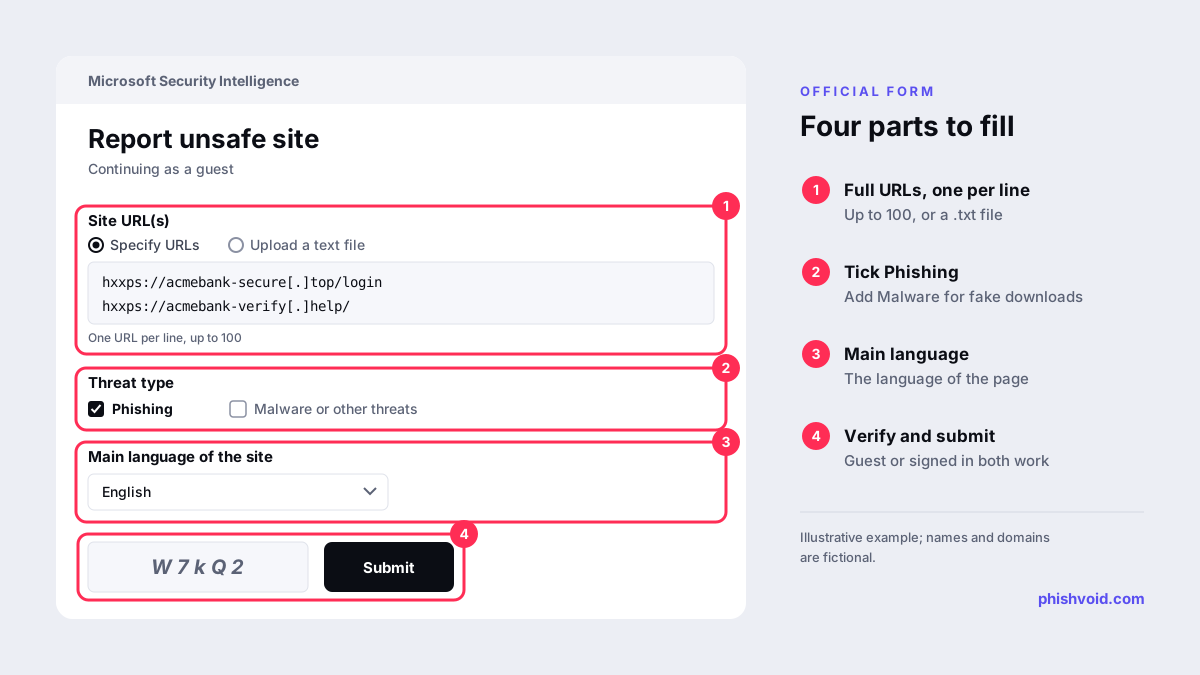
- Go to microsoft.com/en-us/wdsi/support/report-unsafe-site.
- Choose Sign in with a personal or work account, or Continue as a guest. Microsoft says signing in helps it handle the submission efficiently, and work accounts can report several URLs in one submission.
- Under Site URL(s), enter the full address of the phishing page, including the path, one URL per line. The form accepts up to 100 URLs, or a plain text file of URLs under 1 MB.
- Under threat type, select Phishing, described on the form as a site that impersonates another site to gather credentials or other sensitive information. Select Malware or other threats as well if the page pushes downloads or fake security warnings.
- Choose the main language of the site, complete the verification challenge and select Submit.
Which URLs to include
A phishing link rarely points straight at the fake page. Report every address in the chain: the shortened link or redirector in the message, any intermediate page, and the final page that asks for data. If the operator runs the same page on several domains or in several languages, list them all in one submission, because the form handles up to 100 lines. Include the exact link a victim received, with any tracking parameters, since some kits only show the phishing page when those parameters are present.
Enter the real URL, not a defanged one with [.], because the form needs an address Microsoft's systems can visit. Copy it from the message or ad where you found it rather than typing it by hand.
Report from inside Microsoft Edge
If you are already looking at the page in Edge, the browser's own menu is the quickest path. Microsoft's Edge support page describes it as follows:
- Stay on the suspicious page, but do not enter anything into it.
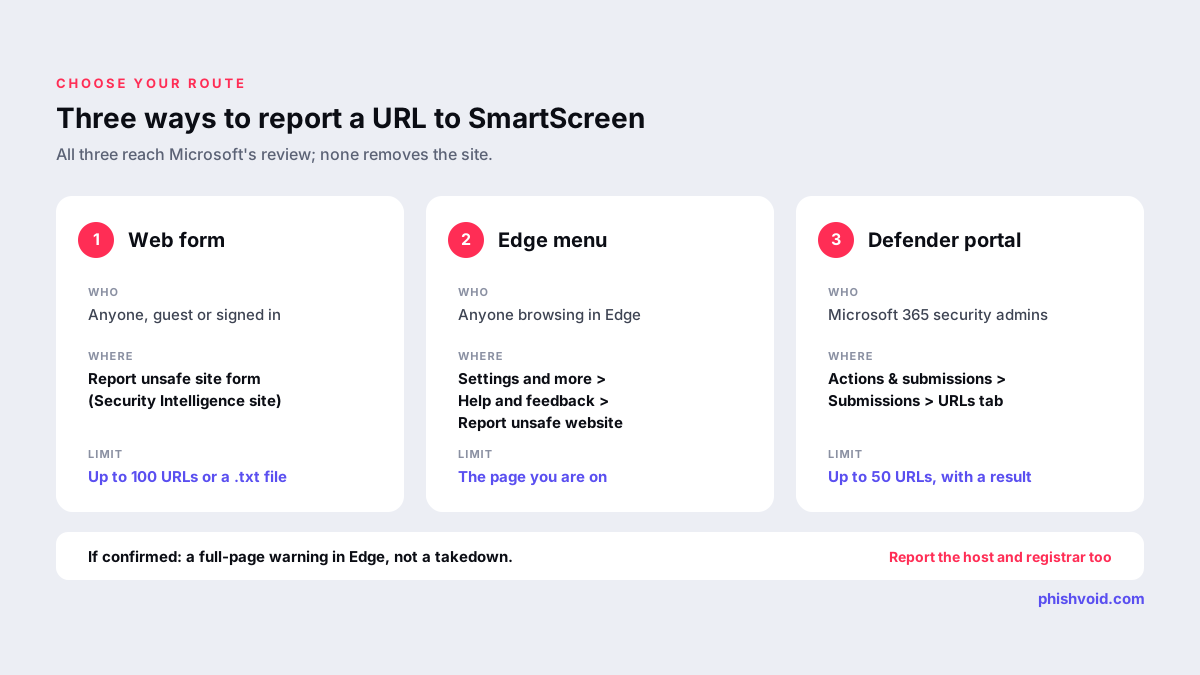
- Select Settings and more, the three dots in the top right corner.
- Select Help and feedback, then Report unsafe website. Menu wording can differ slightly between Edge versions.
- Follow the on-screen steps. The current address is filled in for you.
This route is convenient for a single page. For a list of URLs, or when you do not want to open the site at all, use the web form above.
For Microsoft 365 admins: the Defender portal
Organizations with Exchange Online mailboxes have a third route that also shows the result. Microsoft's submissions guide describes the steps:
- In the Microsoft Defender portal, go to Actions & submissions, then Submissions, and open the URLs tab.
- Select Submit to Microsoft for analysis and enter up to 50 URLs.
- Under the reason, choose It appears suspicious for a verdict, or I've confirmed it's a threat and the category Phish.
- Optionally choose Block this URL, which adds an entry to your tenant's Tenant Allow/Block List. Microsoft lists 30 days as the default duration.
You need a security role, such as Security Administrator or Security Reader, to use the page. The submission then appears on the URLs tab with Microsoft's result. When built-in user reporting is turned on, phishing emails that users report from Outlook appear on the same page, on the User reported tab; our guide on how to report phishing in Outlook covers the user side.
What happens after you report
A report is a signal, not an instant block. Microsoft's troubleshooting guide for blocked sites lists the factors SmartScreen weighs, including URL reputation, page content such as deceptive forms, TLS certificate details, dynamic behaviour like redirects and obfuscation, and user feedback measured by the number of reports and their trust level. Your report is one input; the page itself has to show the problem.
The report form does not state a review time. To see whether the URL is now flagged, open it in Edge on a device where you will not enter any data. A listed site shows a full-page warning before it loads. If it still loads, the review may not be complete, or the page may show different content to Microsoft's scanners than to visitors. In that case, report again with the exact victim link and mention the cloaking in your reports to the host and registrar.
Remember that a SmartScreen warning protects people using Edge and other Microsoft protections; it does not remove the site. Report the same URL to Google Safe Browsing and Netcraft, and send takedown requests to the host and registrar as described in the phishing site takedown process. Phishvoid submits every verified phishing site to SmartScreen alongside those other channels as part of its takedown service.
If SmartScreen blocks a legitimate site
The opposite problem also has an official route. If you own a site that Edge wrongly marks as unsafe, Microsoft's guide says to open the warning page, select More information, then Report that this site doesn't contain threats, and wait for a confirmation email from the SmartScreen Reputation Group. Reply to that email if the case is urgent. Visitors who are not the owner can ask the owner to do this, or use Microsoft's submission portal. Admins who disagree with a submission result can dispute it from the URLs tab of the Submissions page.
FAQ
Do I need a Microsoft account to report a phishing site?
No. The Report unsafe site form offers a guest option. Signing in is optional and lets work accounts report several URLs in one submission.
How many URLs can I report at once?
The public form accepts up to 100 URLs per submission, one per line, or a text file under 1 MB. The admin Submissions page in the Defender portal accepts up to 50 URLs at a time.
Does reporting to SmartScreen take the phishing site offline?
No. SmartScreen shows a warning to people who try to open the page. Only the hosting provider or the domain registrar can remove the site, so report to them as well.
Is reporting phishing in Outlook the same as reporting to SmartScreen?
Not exactly. Reporting in Outlook sends the email for analysis, to Microsoft, to your security team or both, depending on your organization's settings. Reporting the URL through the SmartScreen form targets the website itself. Doing both is reasonable when a phishing email links to a fake site.
Is someone impersonating your brand?
We find lookalike domains and cloned pages and take them down. Start with a free exposure scan.