How to report phishing in Gmail on a computer, what to do in the phone app, when to use Report spam or Block instead, and how work accounts handle reports.
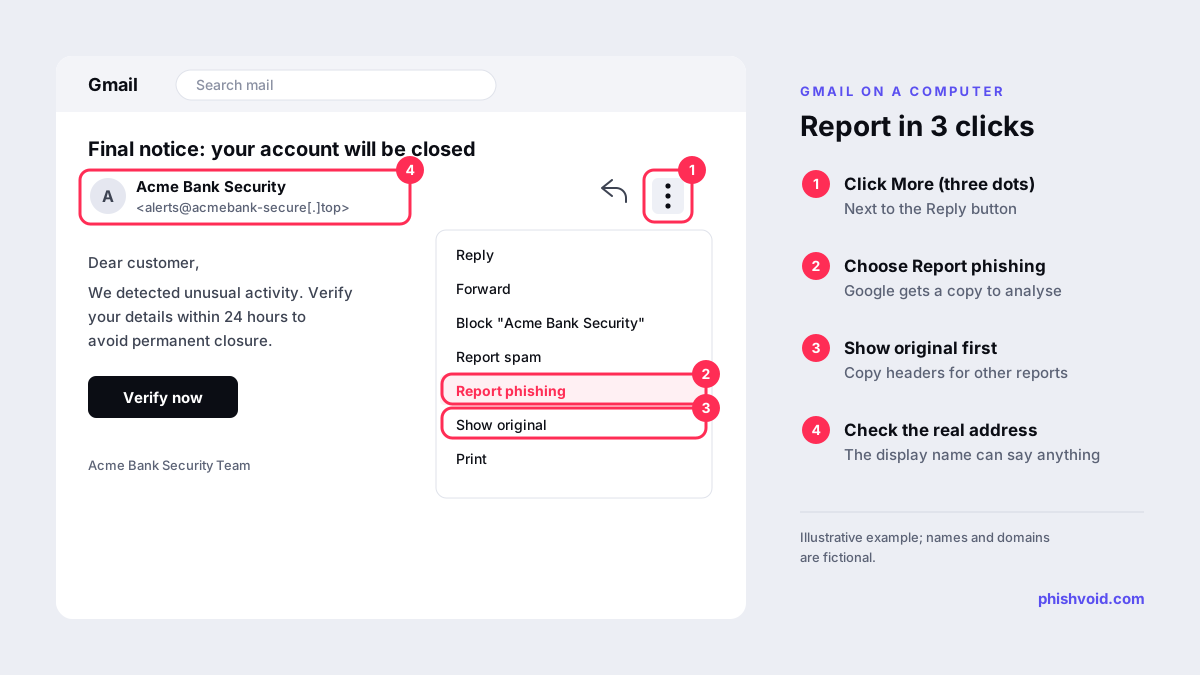
Quick answer: To report phishing in Gmail, open the message in Gmail on a computer, click More (the three dots next to Reply) and choose Report phishing. These are the steps on Google's Gmail phishing help page, which says Google receives a copy of the email and any attachments and may analyse them to protect users from spam and abuse. If you reported a genuine email by mistake, the same menu offers Report not phishing.
That covers most cases. This guide goes through the details that confuse people: why the phone app looks different, when Report spam or Block is the better choice, how reports work on a work or school account, and how to report the sender and the link beyond your own inbox. If you use Outlook instead, see our guide on how to report phishing in Outlook.
How to report phishing in Gmail on a computer
- Go to Gmail in a web browser and open the suspicious message. Do not click its links, open attachments or reply.
- At the top right of the message, next to Reply, click More (three vertical dots).
- Click Report phishing.
You will not get a reply from Google, and you do not need one. The report feeds Gmail's protection: Google's help page notes that when Gmail identifies an email as possible phishing, it may show a warning or move the message to Spam.
Copy the headers first if you will report it elsewhere
Banks, exchanges and other companies that collect phishing reports often ask for the full email headers, because headers show which server really sent the message. In the same More menu, click Show original, then Copy to clipboard, as Google's header help page describes. Paste the text into your report as plain text. Do this before you report, so you do not have to dig the message out of Spam later.
Report spam, Report phishing or Block?
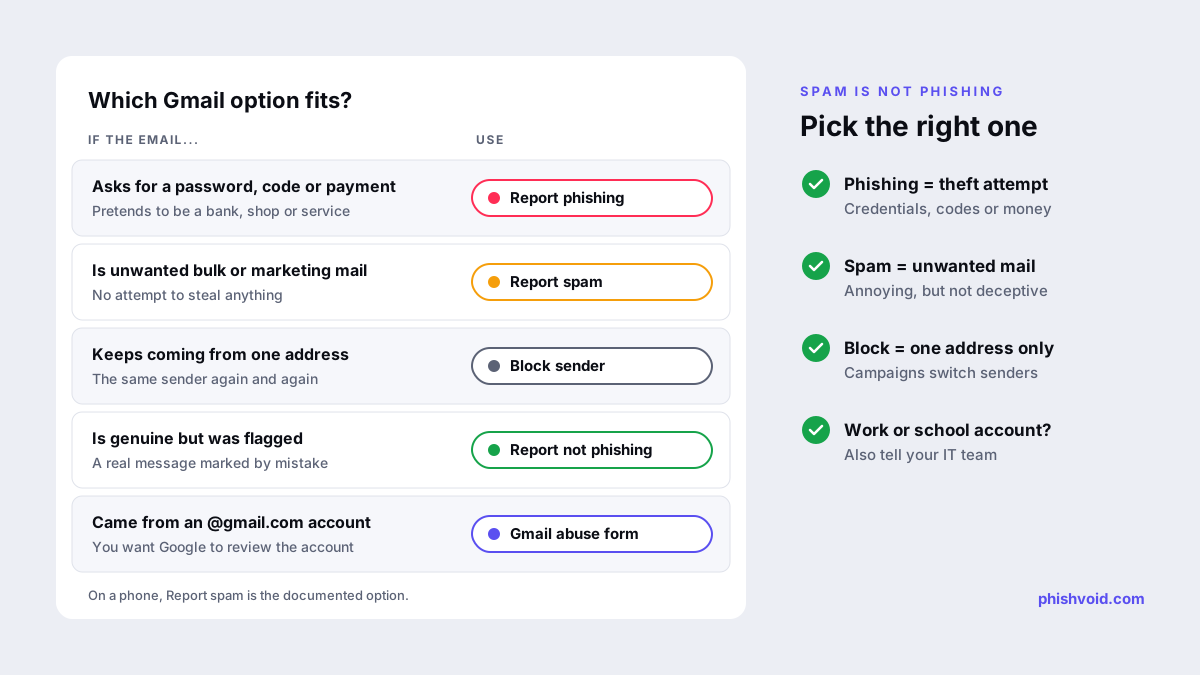
Gmail offers several options that look alike but do different jobs. Picking the right one gives Google a cleaner signal.
| Option | Use it when | What it does |
|---|---|---|
| Report phishing | The email pretends to be someone else to get a password, code, payment or personal data | Sends Google a copy flagged as phishing |
| Report spam | Unwanted bulk or marketing mail with no attempt to deceive you | Moves the message to Spam; Google receives a copy |
| Block "sender" | The same address keeps writing to you | Future mail from that address goes to Spam |
| Report not phishing | A genuine email was wrongly flagged | Tells Google the message is legitimate |
Blocking on its own is weak protection against phishing, because a campaign can send from any number of addresses. Report the message first, then block the sender as well if you like. Google's blocking help page shows the Block option in the same More menu.
Skip the unsubscribe link in a phishing email. Google's spam help suggests unsubscribing only from senders you signed up with; in a fake message, the link is just another link controlled by the sender.
Reporting phishing from the Gmail app on a phone
Google's phishing help page documents Report phishing only for Gmail on a computer. Its spam help page describes the app route instead: open the email, tap More at the top right, then tap Report spam.
On a phone you therefore have two practical options:
- Tap Report spam straight away. The message leaves your inbox and Google receives a copy.
- For a full phishing report, open Gmail in a browser on a computer later, find the message in your Spam folder and use Report phishing there.
App menus change between versions. If your app shows a phishing option, use it; if it does not, Report spam is the documented route.
Work and school accounts (Google Workspace)
If your address belongs to an employer or a school, your report also reaches your administrators. Google Workspace has a User-reported phishing alert in the admin Alert center. Google's alert details help explains that a spike in user reports can signal an active phishing attack, and that the alert shows the sender, the number of reports and the recipients. Administrators can then use the investigation tool to find the same message in other mailboxes and remove it.
Many organisations also add a separate reporting button to Gmail through an add-on that sends the email to the security team or a training platform. If you see one in the Gmail side panel, follow your organisation's instructions and use it. And if you clicked a link or typed a password, contact your IT or security team directly. A report button does not tell anyone that you need help.
Report the sender and the link beyond Gmail
Report phishing protects Gmail users. A few more reports protect everyone else:
- The sending account. If the phishing came from an @gmail.com address, Google has a form to report a Gmail account that sent abusive email. It asks for the full header and the message content, which is where Show original helps.
- The fake website. If the email links to a phishing page, report the URL to blocklists so browsers warn visitors. See our guides to reporting phishing to Google Safe Browsing and reporting phishing to Netcraft.
- The impersonated organisation. Many banks and services publish an address for phishing reports. Find it by typing the company's website address yourself, not through the email.
- National services. In the United States, the FTC's phishing guidance says to forward phishing emails to reportphishing@apwg.org. In the UK, the NCSC asks people to forward suspicious emails to report@phishing.gov.uk.
If you clicked a link or typed your password
- Close the page and do not enter anything else.
- If you entered your Google password, follow Google's guide to secure a hacked or compromised Google Account: change the password, review recent security events and signed-in devices, and turn on 2-Step Verification.
- If you entered a password for another service, change it on that service's real site, and anywhere you reused it.
- If you shared card or bank details, call your bank using the number on your card.
Our page for people who got phished has the full checklist. To get better at spotting the next one, read how to spot a phishing email.
FAQ
Where is the Report phishing button in Gmail?
Open the email in Gmail on a computer and click More, the three dots next to Reply at the top right of the message. Report phishing is in that menu, along with Report spam, Block and Show original.
Can I report phishing in the Gmail app?
Google's help documents Report phishing only for Gmail on a computer. In the app, the documented option is More, then Report spam. You can file a full phishing report later from a computer.
What is the difference between Report spam and Report phishing?
Spam is unwanted mail. Phishing is an attempt to trick you into giving away passwords, codes, money or personal data, usually by pretending to be a trusted company. Use Report phishing for anything deceptive.
Does reporting phishing in Gmail block the sender?
Reporting and blocking are separate options in the More menu. To stop mail from that address, choose Block as well. Phishing campaigns often switch addresses, so reporting is the more useful of the two.
What if I reported a real email as phishing by mistake?
Open the message on a computer, click More next to Reply and choose Report not phishing.
Is someone impersonating your brand?
We find lookalike domains and cloned pages and take them down. Start with a free exposure scan.